Integrating User Authentication with Clerk: A Detailed Guide
This guide provides a technically accurate and detailed explanation of how to integrate user authentication (login, signup, etc.) functionalities into your web application using Clerk. Clerk aims to help developers reduce the time spent on initial setup, allowing them to focus on implementing core features.
Step 1: Clerk Environment Setup (Installation)
This step involves the fundamental preparations for integrating Clerk into your web application.
- Create Clerk Account and Application Setup:
- Access clerk.com and create a free account.
- In the dashboard, click "Add Application" or a similar button to create a new application.
- Assign a name to your application and select the authentication methods users can use to log in (e.g., email address, phone number, OAuth providers like Google, GitHub, Kakao). These settings can be modified later.
- Install Clerk SDK:
- On your application's settings page in the Clerk dashboard, find the Clerk SDK installation command specific to your project stack (e.g., Next.js, React, Remix).
- Typically, you'll execute a command like npm install @clerk/nextjs (for Next.js) in your terminal or command prompt to add the SDK to your project. This SDK is an essential library that enables your web application to utilize Clerk's functionalities.
- Configure Environment Variables:
- Clerk provides API keys (Publishable Key, Secret Key) necessary for your application. These keys are unique identifiers used for communication between your application and the Clerk service.
- Create an environment variable file (e.g., .env.local for development, .env.production for production) in your project's root directory. Copy and paste the provided API keys into this file. For example: NEXT_PUBLIC_CLERK_PUBLISHABLE_KEY=pk_live_..., CLERK_SECRET_KEY=sk_live_....
- These environment variables ensure your application can securely access the Clerk service.
- Middleware Configuration (Next.js Example):
- For Next.js projects, create a middleware.ts or middleware.js file and add the middleware code provided by Clerk.
- This middleware intercepts all requests to your application to check the user's authentication status. You can use config.matcher to specify which paths the middleware should apply to (e.g., /((?!.*\\..*|_next).*) applies to all requests except static files and internal Next.js paths).
- Install Clerk Theme Package (Optional):
- To customize the visual theme of Clerk UI components, you can install a theme package, such as npm install @clerk/themes. This is useful for applying specific design systems, like dark mode.
Step 2: Clerk Setup and Basic UI Integration (Setup)
This stage involves integrating the Clerk SDK into your actual web application and configuring the basic user interface.
- Add ClerkProvider Component:
- Wrap your application's top-level component (e.g., layout.tsx or _app.tsx in Next.js) with <ClerkProvider>. This ensures Clerk's authentication system operates throughout your entire application.
- This Provider globally manages authentication states and user information, making Clerk APIs available to descendant components.
- If you've installed a theme package, you can apply settings like dark mode via the appearance prop.
- Integrate Authentication UI Components:
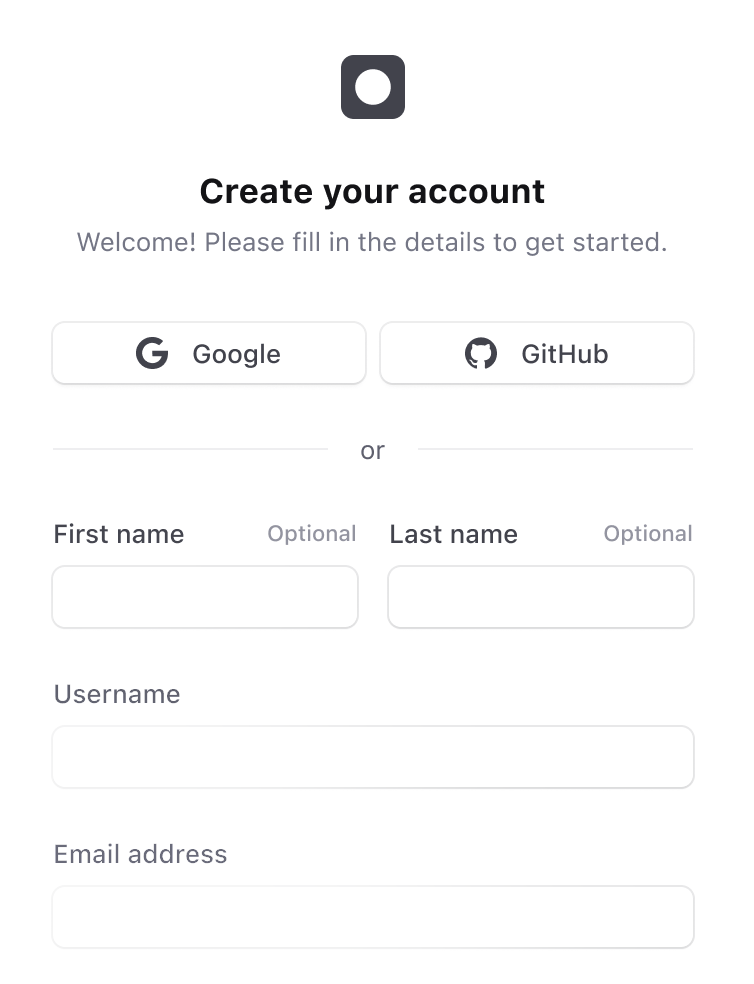
- Login/Signup Buttons: Add Clerk UI components like SignInButton and SignUpButton to your header or other appropriate locations, allowing users to log in or sign up.
- User Management Component: Integrate the UserButton component for authenticated users. This button displays the user's avatar and name, providing a dropdown menu for account settings and navigation to account management pages.
- Run and Test Application:
- Start your development server (e.g., npm run dev) to run your application.
- Manually test the login and signup flows to confirm Clerk is functioning correctly. You can test features like changing email, adding phone numbers, connecting social accounts, uploading profile images, reviewing active sessions, and deleting accounts from the account management page.
Step 3: Clerk UI Customization (Customization)
Clerk offers robust customization options, enabling you to tailor the authentication UI to match your application's branding.
- Visual Customization via Dashboard:
- Access the Clerk dashboard and navigate to your application's settings.
- In the "Branding" or "Appearance" section, you can modify the primary colors, background colors, fonts, and more for the login/signup widgets. Changes are visible in real-time previews.
- Terms of Service and Privacy Policy Consent:
- From the Clerk dashboard, you can enable an option to require users to agree to your terms of service or privacy policy during signup.
- By specifying the URL for your policy page, a link will be provided during the signup process.
Step 4: Route Protection and User Data Access (Protection)
Configure your application to restrict access to specific pages or resources only to authenticated users, and utilize authenticated user information within your application.
- Secure Protected Routes:
- Create pages that should only be accessible to authenticated users (e.g., a dashboard, user profile page).
- In the middleware.ts file configured in Step 1, use the createRouteMatcher function to define the patterns of the routes you wish to protect. For example, /dashboard(.*) will protect all paths starting with /dashboard.
- Within the middleware, call auth().protect() to ensure access to these routes is restricted to authenticated users. Unauthenticated users attempting to access a protected route will be automatically redirected to the login page.
- Access Authenticated User Information:
- On the client side (e.g., React components), use the useUser() hook to retrieve information about the currently logged-in user. This includes various details like the user's name, email address, and profile image URL.
- On the server side (e.g., Next.js API routes or server components), use the auth() function to check the authentication status and ID of the user making the request. This allows for server-side processing of user-specific data or permission checks.
Step 5: Deployment
Once development is complete, you'll deploy your application to make it accessible to actual users.
- Create Production Instance:
- In the Clerk dashboard, create a "Production Instance." All settings from your development instance will be automatically copied, but new API keys tailored for the production environment will be issued.
- This is a crucial step for ensuring stability by separating development and operational environments.
- Update Environment Variables:
- Add the Clerk production API keys (NEXT_PUBLIC_CLERK_PUBLISHABLE_KEY, CLERK_SECRET_KEY) to the environment variable settings of your deployment platform (e.g., Vercel, Netlify, AWS).
- OAuth Provider Setup (Production):
- If you support logins via external OAuth providers (Google, GitHub, Kakao, etc.), you must register the production environment's redirect URIs in each service's developer console. This is essential for security.
Key Benefits of Clerk:
- Cost-Effectiveness: Offers a generous free plan, typically allowing up to 10,000 monthly active users (MAUs) at no charge.
- Robust Security Features: Includes built-in advanced security and management features like brute-force attack prevention, bot detection, organization management, and disposable email address detection.
- Flexible Customization: Provides high degrees of UI/UX customization, such as removing Clerk branding, setting login modals, adding custom logos, and modifying email templates.
Clerk significantly reduces the time developers spend on building complex authentication systems, allowing them to invest more resources into implementing the core value of their application.